
GNTS1 Smart Sticker quick start & user guide
Everything you need to activate, attach and track a single-use GoAndTrack Smart Sticker S1 — from unopened sticker to shipment visibility in the Command Center.
Prefer a printable version?
Download the full GNTS1 Smart Sticker Quick Start & User Guide (PDF) to keep with your operational documentation.
From unopened sticker to shipment visibility.
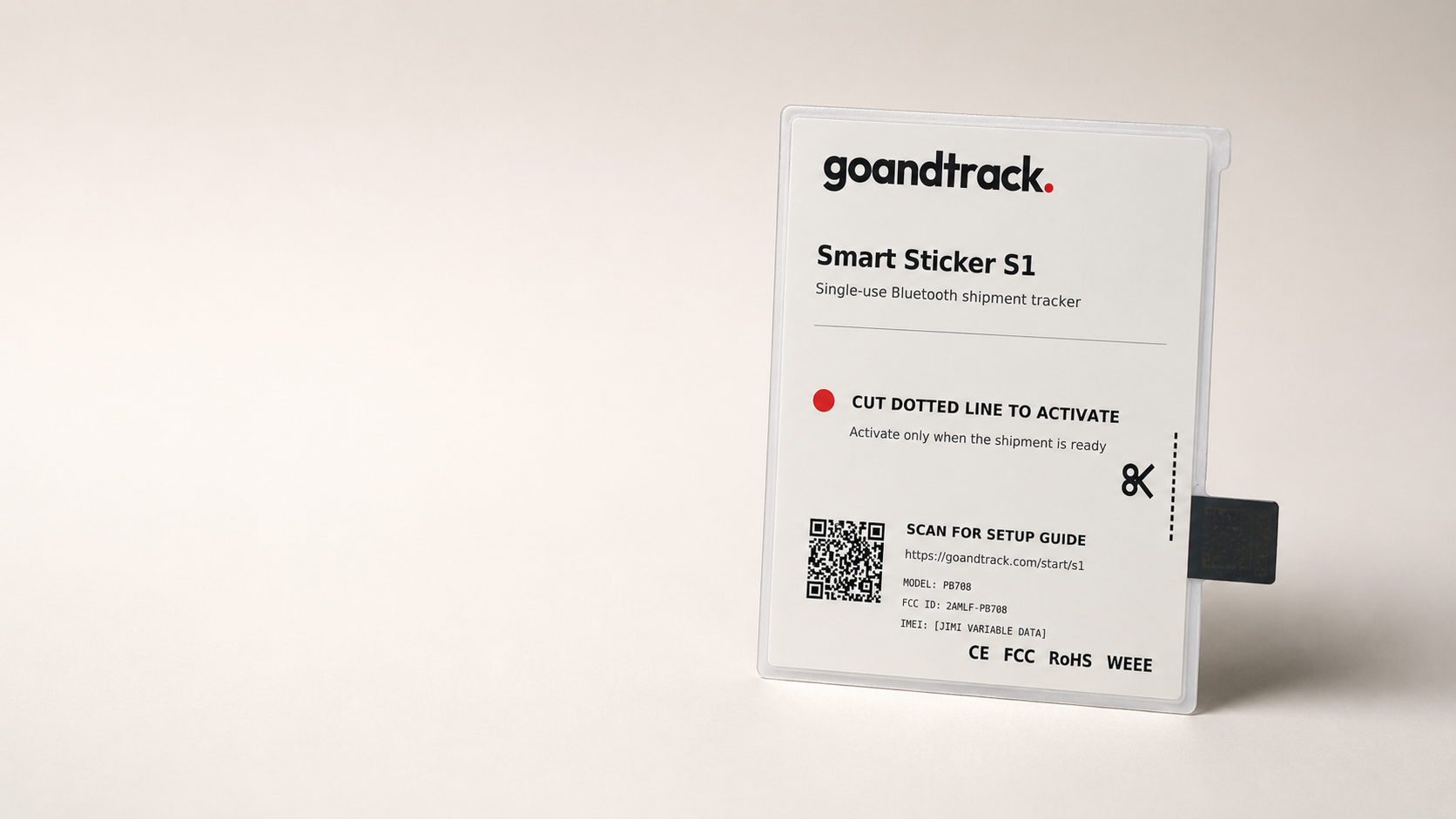
The GNTS1 is a thin, single-use Bluetooth (BLE) tracking sticker that provides shipment location visibility through a supported crowdsourced detection network. It does not need to be paired in your phone's Bluetooth settings.
Check your sticker and GoAndTrack access
Confirm the sticker is undamaged and that you can sign in to GoAndTrack before activation.
Prepare the shipment
Pack and label the shipment first. Only activate the sticker when the shipment is ready to leave.
Activate the GNTS1
Cut only along the marked dotted activation line. This powers the sticker on and starts battery use.
Attach it to the shipment
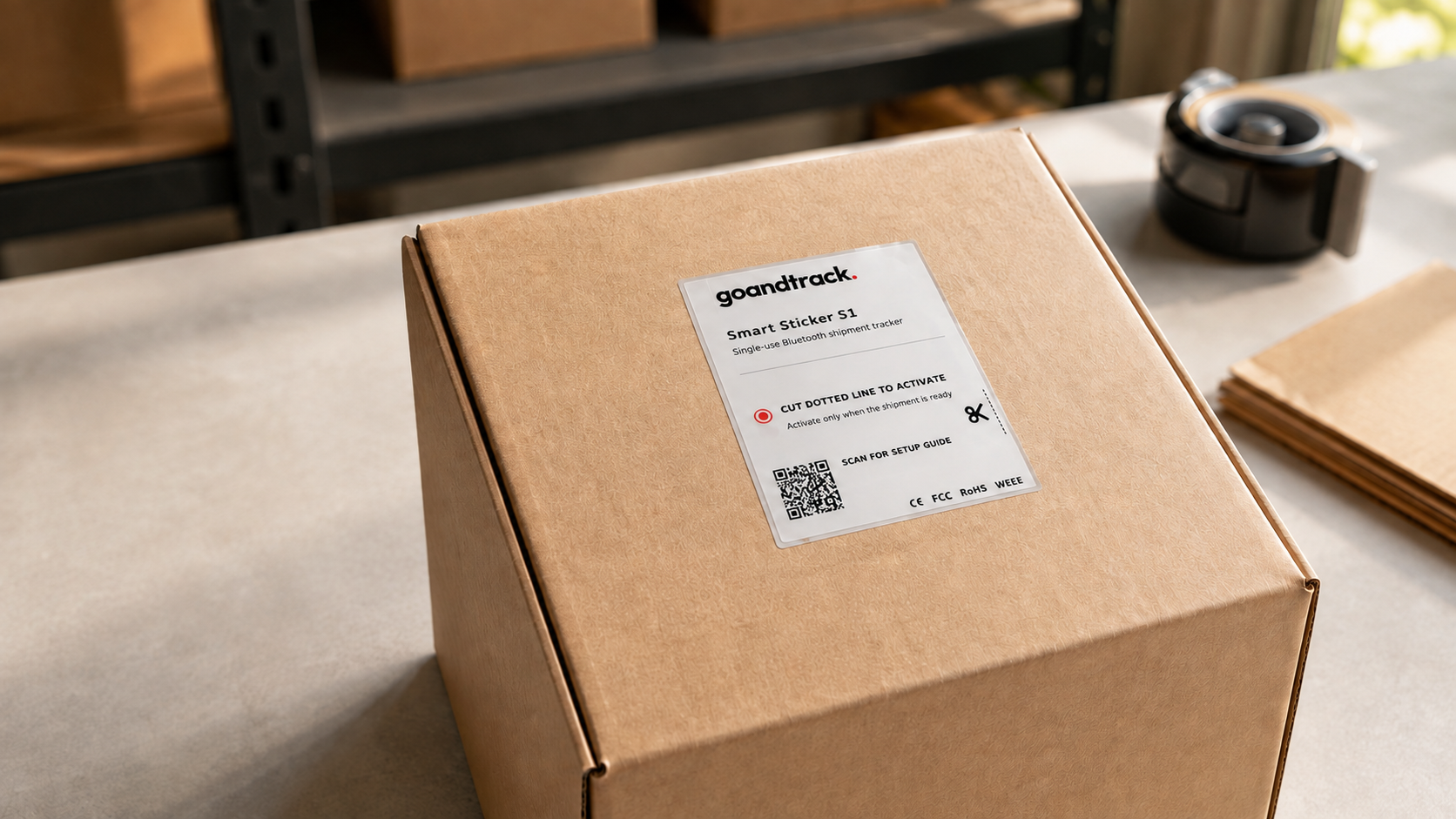
Fix the sticker securely to a clean, dry external surface with the printed face visible.
Track in GoAndTrack
Open the Command Center to view the sticker on the map, review history, configure alerts and generate reports.
Activate only when ready to ship. The battery is built in and non-replaceable. Cutting the activation line powers the sticker on. Do not activate stickers in advance of the shipment.
What to expect from BLE crowdsourced location
- The sticker broadcasts a Bluetooth signal; location updates depend on nearby compatible participating phones or gateways detecting it.
- Location is periodic rather than guaranteed in real time. There may be gaps or delays in areas with low detector density.
- If no new location is shown, allow up to around 30 minutes and refresh before treating it as a fault.
Key product facts: BLE 5.3 · built-in non-replaceable Zn-Mn battery · approx. 4 g · operating range 0°C to 45°C.
Before you activate.
Each GNTS1 is provisioned to your organisation before dispatch, so you should be able to find the sticker in GoAndTrack without pairing it to your phone. Do these checks while the sticker is still unused.
A. Sign in to GoAndTrack
- Open app.goandtrack.com and sign in with your organisation email and password.
- The main operational view is the Command Center.
- Use the device list on the left to search for the sticker by name or device identifier.
- If the sticker is not visible, stop and contact your GoAndTrack administrator before activation.
B. Check the shipment is ready
- Finish packing, sealing and labelling the shipment first.
- Choose a flat, clean and dry external surface for the sticker.
- Keep the sticker away from unnecessary metal shielding — metal, foil insulation or dense metal directly over the sticker reduces BLE performance.
- Do not activate a spare sticker just to test it unless you intend to use that unit.
C. Optional: name the sticker
- In the Command Center, select the device and edit its alias on the Overview tab.
- Use a format meaningful to your operation, e.g. PO-48317 / Customer Name / Manchester.
- A practical alias makes the shipment easier to find later.
Activate the GNTS1.
Cut the marked activation line — and nowhere else.
- 1Hold the sticker by its edges and locate the dotted activation line beside the scissors symbol.
- 2Using scissors, cut straight through the dotted line only.
- 3The cut powers the sticker on. From this point the internal battery is active.
- 4Do not cut into the main body of the sticker or attempt to reopen, reseal or recharge it.
Do not use the phone Bluetooth pairing menu
The standard GoAndTrack GNTS1 workflow does not require manual pairing in iOS or Android Bluetooth settings. It is managed through the device/provider integration and the GoAndTrack platform.
After activation
- Attach the sticker promptly so the activated device travels with the consignment.
- The first useful location update may not appear immediately.
- If no location data appears, allow up to around 30 minutes, then refresh.
Attach the sticker to the shipment.
Placement has a direct effect on Bluetooth performance.
Recommended placement
- Attach to the outside of the carton, pallet wrap, returnable packaging or shipment envelope.
- Use a flat area so the sticker is not creased, sharply bent or stressed.
- Apply to a clean, dry surface and press firmly so it stays attached through handling.
- Keep the printed face and activation area unobstructed where possible.
- For metal assets, position the sticker where it has the clearest practical radio path.
Do this
- Attach to an exterior surface
- Keep it flat
- Press the adhesive down firmly
- Keep away from obvious radio shielding
- Use one sticker for one intended trip
Avoid this
- Fold or crease the active area
- Submerge in water
- Place in fire or near extreme heat
- Puncture, crush or disassemble
- Attempt to recharge or reuse the battery
Temperature limit: the supplied manufacturer rating is 0°C to 45°C. Do not assume suitability outside this range unless GoAndTrack has confirmed a different specification for your GNTS1 production batch.
Use the GoAndTrack platform.
After login, the Command Center brings your devices, map, alerts and history together in one screen. The device list sits on the left, the map in the centre and the device panel on the right.
Overview
Latest device information, last telemetry, location and device alias.
History
Telemetry chart and data table. The default history window is 12 hours.
Settings
Configure the alert types and thresholds supported by that device.
Geofencing
Review active rules, zone status, map preview and saved geofences.
Reports
Generate PDF or CSV reports from device data.
Mission Control
Alert triage: active risks sorted by severity with AI-assisted analysis.
Track and manage the shipment.
Use the map, history and alerts together.
During the journey
- Use the map for the latest known location rather than a continuous live GPS trace.
- Open History to review when and where updates were recorded.
- Use the last-updated time to judge whether data is fresh or stale.
- If geofences are configured, check zone status and enter/exit events.
Alerts
- Active risks appear in Mission Control until acknowledged or resolved.
- GoAndTrack threshold alerts can be enabled or disabled per sensor where supported.
- Provider-native alarms are separate and may still be received.
Reports
Open the Reports tab for the selected sticker to create a PDF or CSV report from the available device data — useful for customer records, internal review and shipment exception evidence.
Understand the limitation: a GNTS1 is a BLE smart sticker, not a self-contained cellular GPS tracker. Its location visibility depends on successful detection. A missing update does not automatically mean the shipment has stopped moving or the sticker has failed.
Most first-use issues can be checked without support.
| Issue | What to do |
|---|---|
| The sticker is not in my GoAndTrack device list | Do not activate it yet. Confirm you are in the correct organisation/account, search by device identifier, then contact your GoAndTrack administrator if it is still missing. |
| I activated it but no location appears | Wait up to around 30 minutes and refresh. BLE crowdsourced location depends on a participating detector being nearby. Updates may be sparse in low-density areas. |
| The location has not changed for a while | Check the last-updated timestamp. A stale location can mean the sticker has not recently been detected, not necessarily that the shipment is stationary. |
| The sticker was cut or damaged in the wrong place | Do not disassemble or attempt a repair. Remove the unit from service and use a fresh sticker if reliable tracking is required. |
| The sticker is on a metal asset and updates are poor | Where practical, reposition to an external area with less metal directly surrounding the sticker. BLE performance can be reduced by shielding. |
| I cannot log in to GoAndTrack | Use the login/forgot-password flow. If your account or organisation access is the issue, contact your GoAndTrack administrator. |
Get help
- Platform: app.goandtrack.com
- Support: support@goandtrack.com
- Setup guide: goandtrack.com/start/s1
Safety, disposal and technical information.
Keep this section with your operational documentation.
Battery and handling safety
- The battery is built in, non-replaceable and not rechargeable.
- Do not immerse in water, place in fire, crush, puncture, force open or disassemble.
- Keep the sticker and any exposed battery material away from children.
- If damaged and battery material is exposed, stop handling it and follow your organisation's battery incident procedure.
- At end of life, dispose of the sticker through the appropriate electronic/battery waste route.
Regulatory: the supplied manufacturer manual includes an FCC Part 15 compliance statement and RF exposure language. Customer-facing regulatory wording should match the exact GNTS1 production label and certification records for your market.
| Connectivity | Bluetooth Low Energy (BLE) 5.3 |
|---|---|
| Battery | Built-in, non-replaceable Zn-Mn battery |
| Approx. size | 65 × 56 mm (manufacturer guide) |
| Weight | Approx. 4 g |
| Operating temperature | 0°C to 45°C (manufacturer guide) |
| Material | Waterproof paper / thermal paper |
Need more Smart Sticker S1 units?
Talk to us about scaling GNTS1 Smart Stickers across your lanes — hardware, activation workflow and the GoAndTrack platform.